
Veeam Backup add vCenter is the first step for VMware backup. In this article, I will show how to add vCenter to Veeam Backup & Replication server step by step.
Veeam Backup add vCenter enables backing up virtual machines, replicating them, and creating disaster recovery plans.
Why add vCenter to Veeam Backup?
Adding a vCenter server to Veeam Backup & Replication is essential for:
- VM Backup – backing up all virtual machines
- Replication – replicating VMs to secondary storage
- Instant Recovery – instant VM recovery
- Granular Recovery – recovering individual files
More information in official Veeam documentation.
Veeam Backup add vCenter – procedure
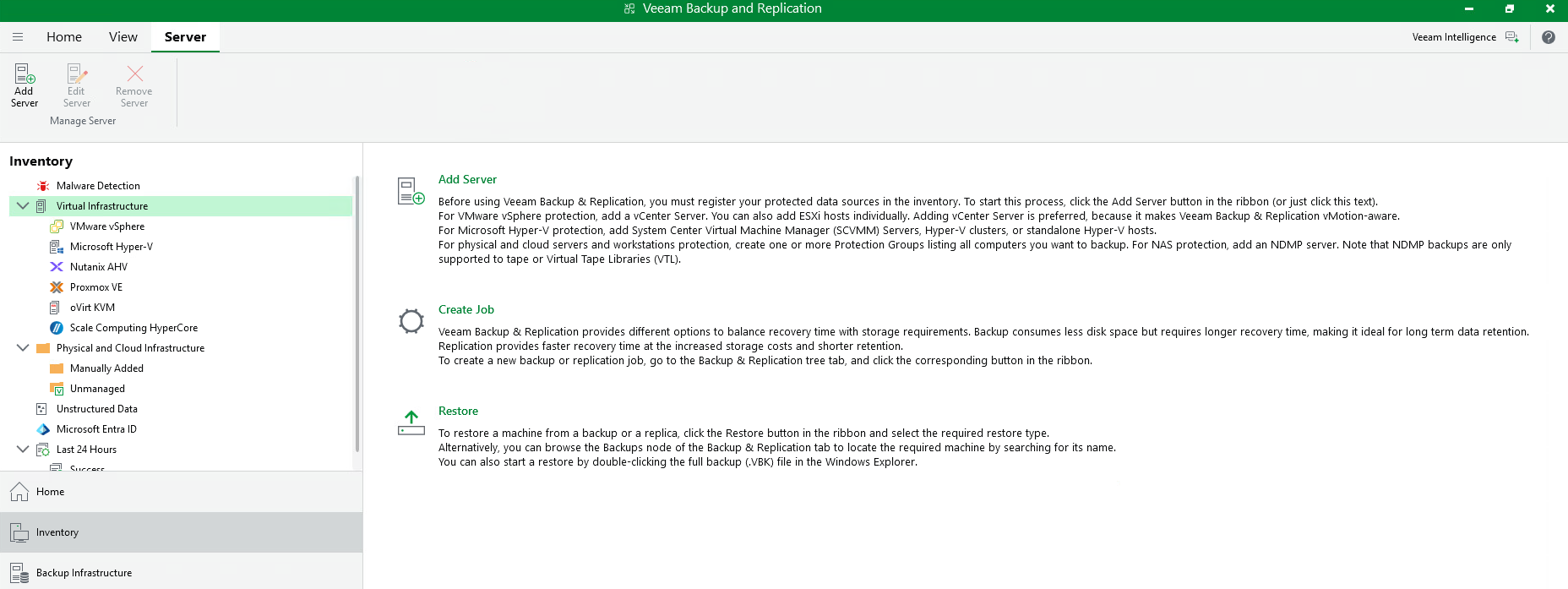
Step 1: Open Virtual Infrastructure
In Veeam Backup & Replication console, navigate to Virtual Infrastructure section and click the Add Server button.
Step 2: Select server type
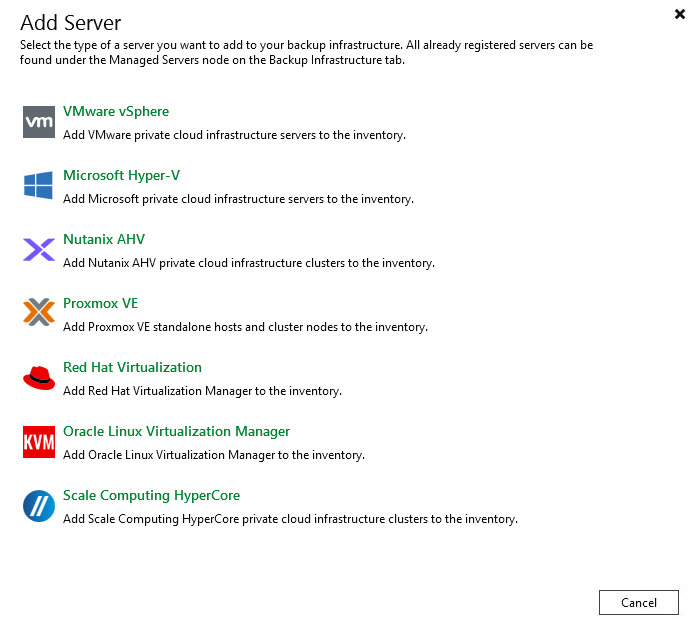
In the Add Server dialog, select VMware vSphere as the infrastructure type.
Step 3: Select vSphere
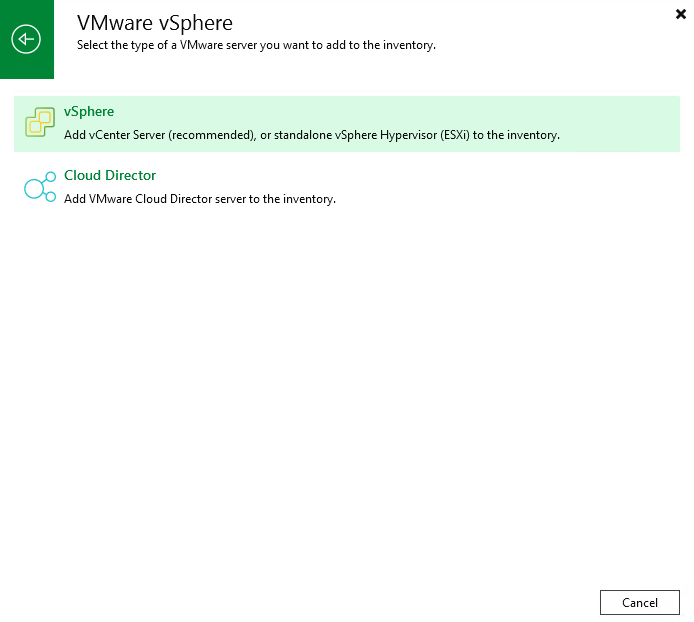
Select vSphere (not Cloud Director) to connect to vCenter server.
Step 4: Enter DNS name or IP address
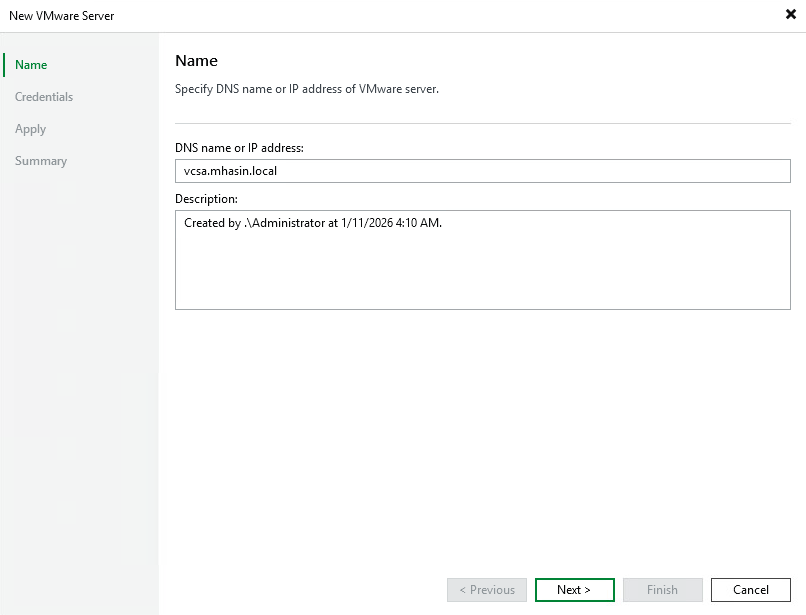
In the Name step, enter the DNS name or IP address of your vCenter server. In my case, it’s vcsa.mhasin.local.
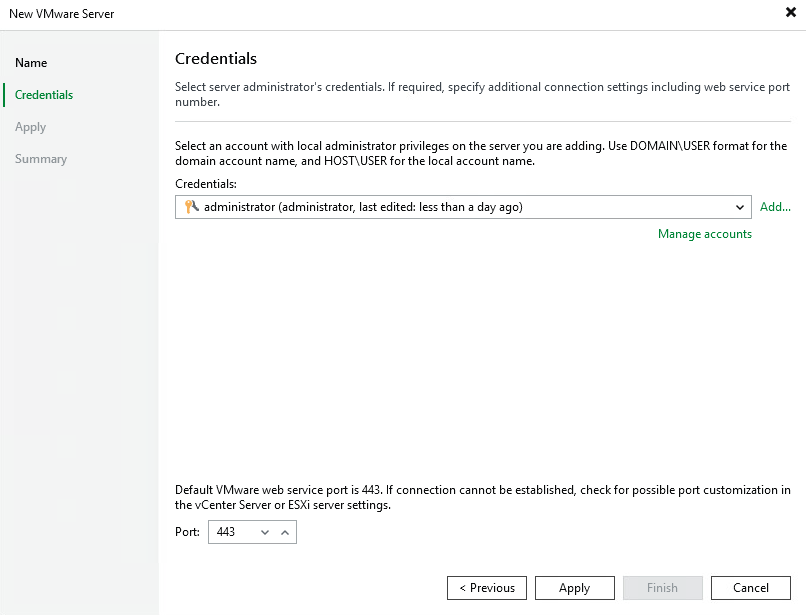
Step 5: Set credentials
In the Credentials step, select or add an account with administrator privileges on the vCenter server. The default port is 443.
Step 6: Confirm certificate
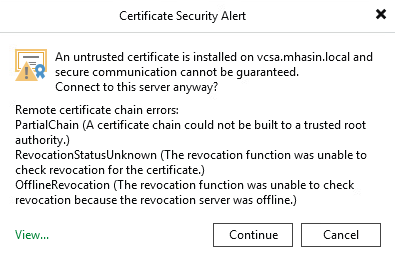
If vCenter uses a self-signed certificate, a security warning will appear. Click Continue to proceed.
Step 7: Wait for completion
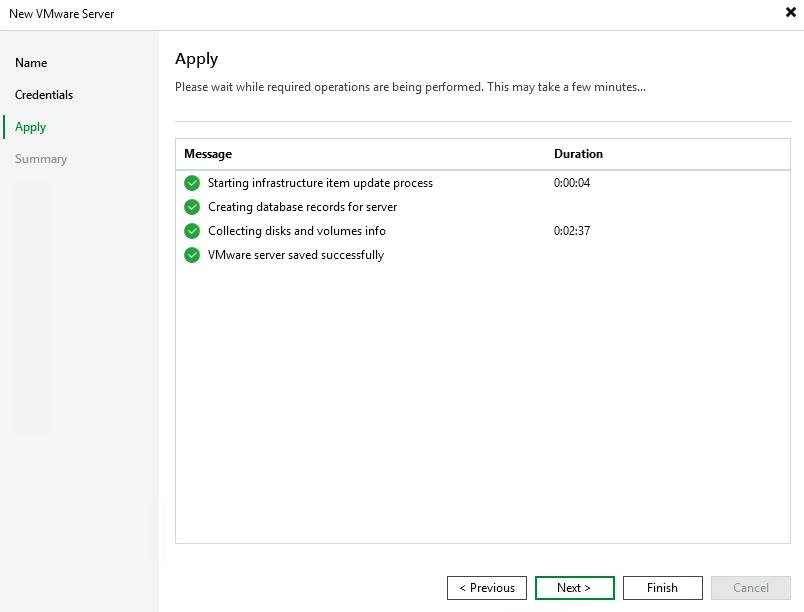
Veeam will connect to the vCenter server, create database records, and collect disk and volume information.
Step 8: Finish
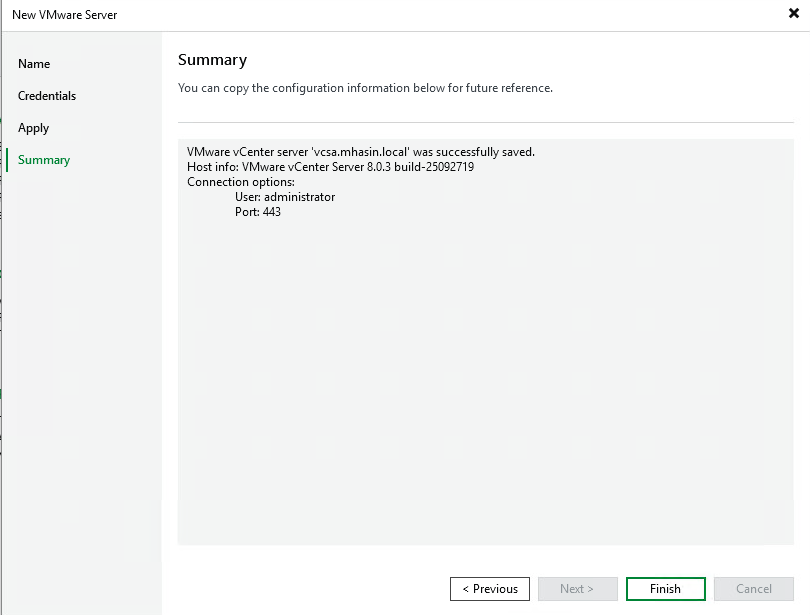
After successful completion, a summary with information about the added vCenter server will be displayed. Click Finish.
Summary
Veeam Backup add vCenter is a simple 8-step process. After adding the vCenter server, you can start backing up your virtual machines.
More guides on VMware and Veeam in our sections.

Odborník na kybernetickú bezpečnosť, správu Azure Cloud a VMware onprem. Využíva technológie, ako Checkmk a MRTG, na monitorovanie siete a zvyšovanie efektívnosti a bezpečnosti IT infraštruktúry. Kontakt: hasin(at)mhite.sk